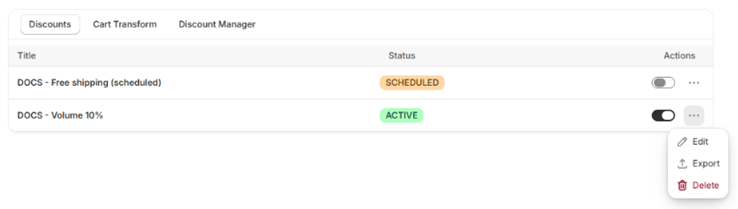
The page header has Create Campaign and Import Campaign.

Empty state
Before you create a campaign, the Discounts tab shows “No campaigns available” with a Create Campaign button.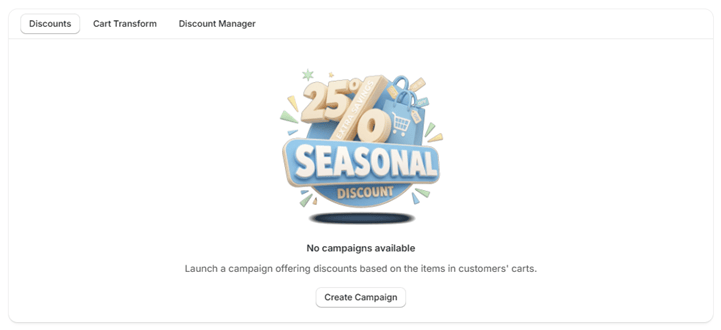
Each row
Every campaign shows its title, its status badge (Active, Scheduled or Expired) and its actions.- For a code discount, the title is the code itself. Hover over the row to show a copy button, which copies the code.
- The toggle activates or expires the campaign. See Activating and expiring.
- The More actions menu has:
- Edit opens the campaign in the form it was built with.
- Export downloads the campaign as a
.jsonfile. See Import and export. - Delete removes the campaign. See Deleting a campaign.