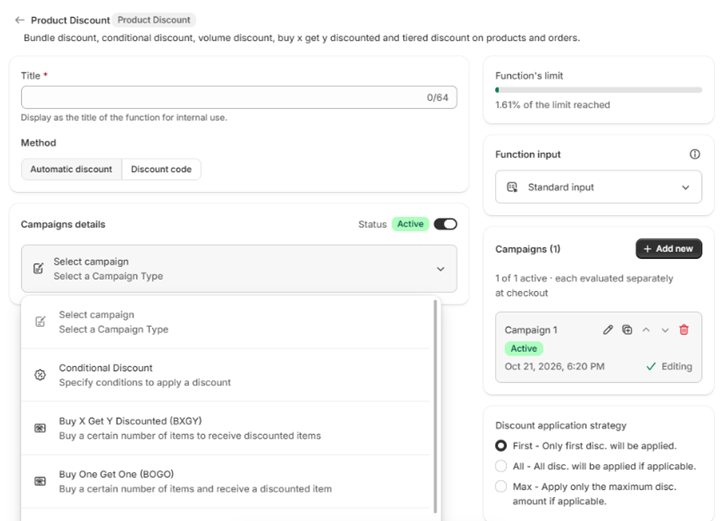
The campaign name is optional and is never shown to customers. It only helps you find the campaign later.
Several campaigns in one discount
One discount can hold several campaigns. The campaign list in the form’s side panel shows them; use Add new to add another, and the row menu to Edit, Duplicate, Move up, Move down or Delete one. The campaign you are editing is marked Editing.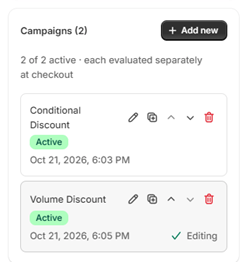
Standard and advance input
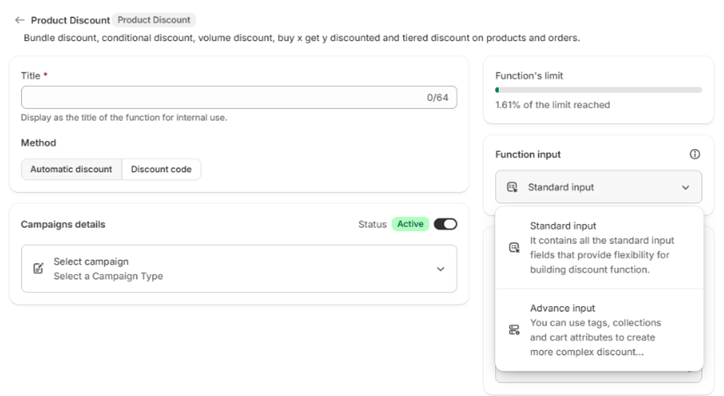
The Function input setting in the side panel offers two modes:- Standard input covers the common fields.
- Advance input adds product tags, collections and cart attributes for more complex rules. It is required for Dynamic Price.
Bundle Discount discounts a combination of items the shopper adds separately. To merge items into a single bundle line in the cart, use Cart Transform instead.